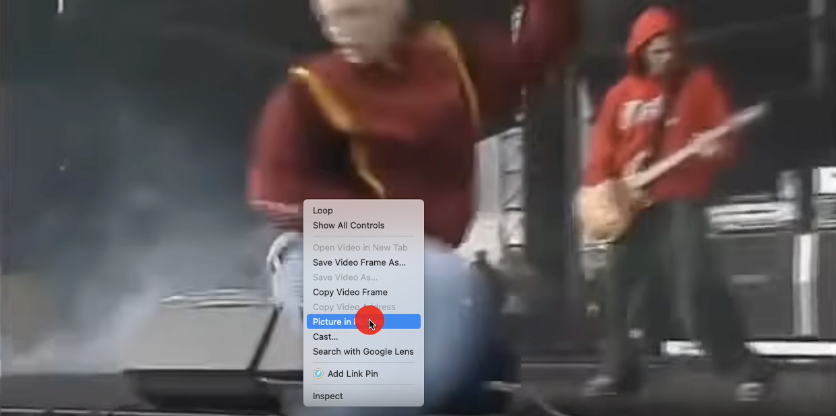
This is just a quick tip. I watch a lot of YouTube daily… and by a lot–I MEAN A LOT.
My setup is comprised of two larger monitors really lends itself to Picture-in-Picture with YouTube. It’s the only way to keep the window in view no matter what “virtual desktop” that I am on. The problem is sometimes YouTube doesn’t give me the little Chromecast icon that I’ve been familiar with using to activate Picture-in-Picture for YouTube.
Soooooo… what to do? lose the video while you scroll through your desktops? hahaha, unacceptable.
Turns out there is another way to do it:
- First, you right click on the video
- Second, you then right click on a different part of the video, AGAIN.
- And like magic another dialog comes up with Picture-in-Picture being one of the options.
See it in action:
As you can see.. you just have to right click twice, and BAM! You get the right dialog, and your in like flynn with PIP glory.
until next time //g